Moving a shop to a new address touches more than the web server. Work through these in order.
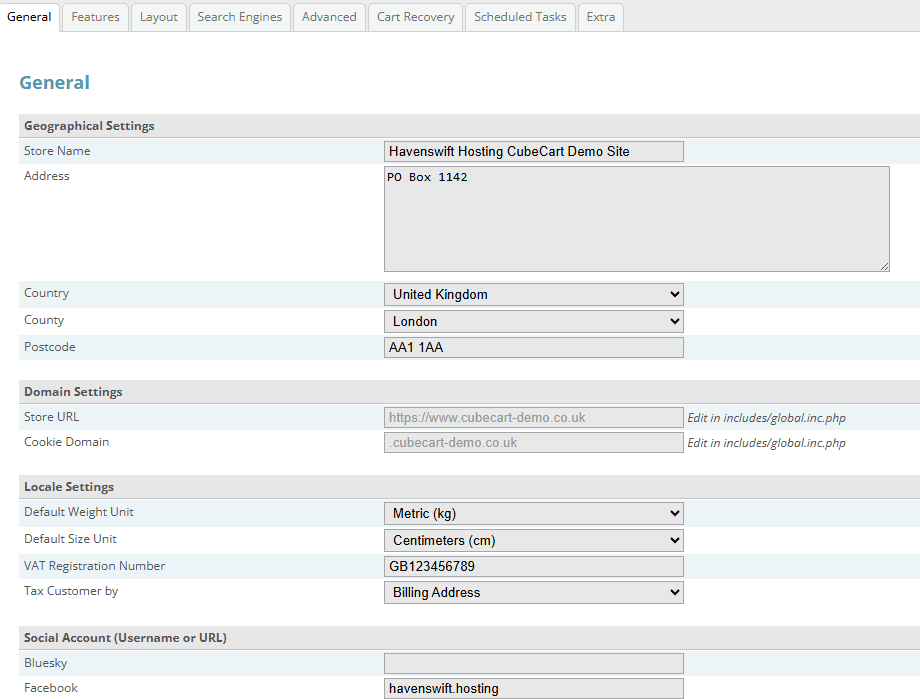
Store Settings, General tab. The Store URL is greyed out because it is set in includes/global.inc.php, which is the file to edit when the domain changes
Before you start
Take a full backup of both the files and the database, and tell us the new address – your plugin licences are issued against the store address and will need updating, ideally before the change rather than after.
The store address itself
CubeCart holds its address in two places: the Store URL in the admin settings, and in some installations a pinned value in the configuration file on disk. If you change only the admin setting and the file overrides it, the change appears not to take. Check both.
Things that hold the old address
- Product and category descriptions containing absolute links or image paths
- Email templates within CubeCart
- Any payment gateway configured with a return or callback address
- Your sitemap and robots.txt
- Analytics and search console properties
Redirect the old address
Keep the old domain and redirect it permanently to the new one. Search engines and, more importantly, existing customers with bookmarks and old order emails will keep arriving on it for years.
Afterwards
Place a test order end to end, including payment, before you announce the change. Confirm the certificate has been issued for the new address, and check that plugin licences are validating.