Speed Up Website Transfers by Reducing DNS TTL
If you have ever moved a website and found that some people see the new server while others are still landing on the old one, this is why. The fix takes two minutes, but it has to be done in advance, and by the time you notice the problem it is too late to help.
What TTL is
Every DNS record carries a Time To Live: a number of seconds telling any resolver that looks it up how long it may cache the answer before asking again.
When someone’s internet provider looks up your domain, it keeps the result for the TTL you set. Every subsequent visitor using that resolver gets the cached answer without your DNS servers being troubled at all. Once the TTL expires, the next request triggers a fresh lookup.
So a TTL of 3600 means “you may remember this for an hour”. A TTL of 86400 means “you may remember this for a day”.
Why the default is high
Caching is doing useful work. Reading a local cache is far faster than a full DNS lookup, so a long TTL means quicker page loads for visitors and dramatically less DNS traffic, both for the authoritative servers and for the internet generally.
It also provides resilience. If your DNS provider has an outage, cached records keep resolving until they expire. A site with a five minute TTL goes dark far quicker than one with a day.
For a domain that is not going anywhere, a high TTL is the right setting.
Why it becomes a problem
The moment you change a record, everyone holding a cached copy carries on using the old value until their cache expires.
With a TTL of 86400, one visitor’s provider might refresh two minutes after your change and another’s twenty-three hours later. For that whole period your site exists in two places at once. On a shop that means orders landing on a server you have stopped watching, and customers seeing stock levels and prices from the old database.
This is the split-brain effect people describe as “the DNS hasn’t propagated yet”. Nothing is propagating. Caches are expiring at different times.
The procedure
The rule is straightforward: lower the TTL at least one old-TTL period before you make the change.
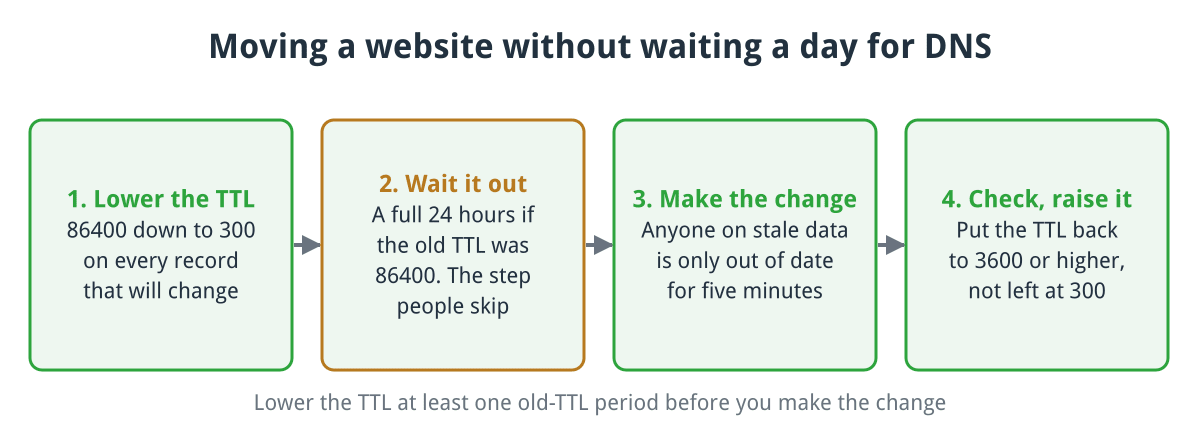
The order matters. Skipping the wait in step 2 makes the whole exercise pointless.
Click for full sized image
- Find your current TTL. If it is 86400, you need to act at least 24 hours ahead.
- Lower it to 300 (five minutes) on every record you are going to change. For a website move that is usually the A and AAAA records, plus any CNAME involved, and MX records if mail is moving too.
- Wait out the old TTL. A full 24 hours if it was 86400. This is the step people skip, and skipping it makes the whole exercise pointless, because resolvers are still holding the old record with its old long TTL.
- Make the change. Worst case anyone is now on stale data for five minutes.
- Check, then put it back. Once you are satisfied, return the TTL to something sensible such as 3600 or higher.
Do not leave it at 300 permanently. You lose the resilience and gain nothing.
Checking what you actually have
Do not trust the control panel, check the live value:
dig +noall +answer example.co.uk
dig +noall +answer MX example.co.uk
The number before IN is the remaining TTL in seconds on that resolver’s cached copy, counting down. Query your authoritative nameserver directly to see the configured value rather than a countdown:
dig +noall +answer example.co.uk @ns1.yourprovider.comOn Windows without dig, nslookup -debug example.co.uk will show TTLs.
Things that catch people out
Nameserver changes are a different thing. Lowering record TTLs does not help if you are changing the nameservers themselves, because that delegation is controlled by the registry with its own TTL, typically 24 to 48 hours, and you cannot shorten it. If you can, move the records at your existing DNS provider rather than switching nameservers, and change nameservers later once everything is stable.
Negative caching is separate. If a record does not exist, that “no such record” answer is cached too, governed by the minimum field in your zone’s SOA record. Create a record that someone has already tried to look up and they may not see it for a while even though your TTL is low.
Some resolvers ignore you. A minority enforce their own minimum TTL regardless of what you set, and some corporate networks and browsers cache independently. Chrome and Firefox keep their own DNS caches, which is why the site can look wrong to you and right to everyone else. Plan for a small number of stragglers.
Email needs more care than the website. A web visitor hitting the old server sees an out of date page. A message delivered to the old server may sit in a mailbox nobody is watching. Keep the old mail server accepting and forwarding for a good while after the move rather than switching it off on the day.
If you use Cloudflare
Records proxied through Cloudflare, the ones with the orange cloud, do not use your TTL at all. Visitors resolve to Cloudflare’s own addresses, and the TTL is managed by Cloudflare and fixed to Auto.
That is genuinely useful during a migration, because changing your origin server address behind the proxy takes effect almost immediately. The public DNS answer never changes, so there is nothing cached to wait for.
Grey-clouded records are ordinary DNS and behave normally, so everything above still applies to them.
Keeping it simple
Two working values cover almost every case. Run at 3600 or higher day to day. Drop to 300 a day before a planned change and put it back afterwards.
The only genuinely hard part is remembering to do it the day before rather than five minutes before.
If you are moving a site or mailboxes to our website hosting, we will handle the TTL planning as part of the migration and tell you when the change needs to be made. Just ask.

There Is 1 Comment
Jim on 04 Sep, 2014
Fantastic timing on this post – came across your post the day after you published it, made the changes and when we moved our website yesterday, I was amazed at how quick it was live
Comments are closed.