How to Find and Read Email Headers
When an email goes missing, arrives in spam, or looks like it came from someone it did not, the answer is almost always in the headers. They are the delivery record: every server the message passed through, when, and what checks it passed or failed.
If you have ever been asked by a support desk to “send the full headers”, this is how to find them and, more usefully, how to read them yourself.
What headers are
Every email carries a block of metadata above the message you see. Your mail client shows you four or five fields from it: From, To, Subject, Date. The full block is typically forty or fifty lines and contains the entire delivery path.
The important thing to understand is that the From address is not proof of anything. It is typed by the sender, exactly like the return address on an envelope. The headers are where you find out whether it is genuine.
Finding them
Outlook (desktop). Open the message in its own window, then File, Properties. The headers are in the Internet headers box at the bottom. It is a small box; select all and copy.
Outlook on the web. Open the message, then the three dots menu, View, View message details.
Gmail. Open the message, then the three dots next to Reply, and Show original. This opens a new tab with the headers and a helpful summary of the SPF, DKIM and DMARC results at the top.
Apple Mail. View, Message, All Headers, or Shift-Command-H.
Thunderbird. View, Headers, All. Or Ctrl-U for the complete source.
cPanel webmail. In Roundcube, open the message, then the three dots for more actions, and View source.
When sending headers to a support desk, paste them as plain text rather than a screenshot, and send the whole block. The useful part is often the line someone crops out.
Reading them
Start at the bottom. Received headers are added in order, so the oldest is last and the newest is at the top. Reading upwards follows the message forwards in time.
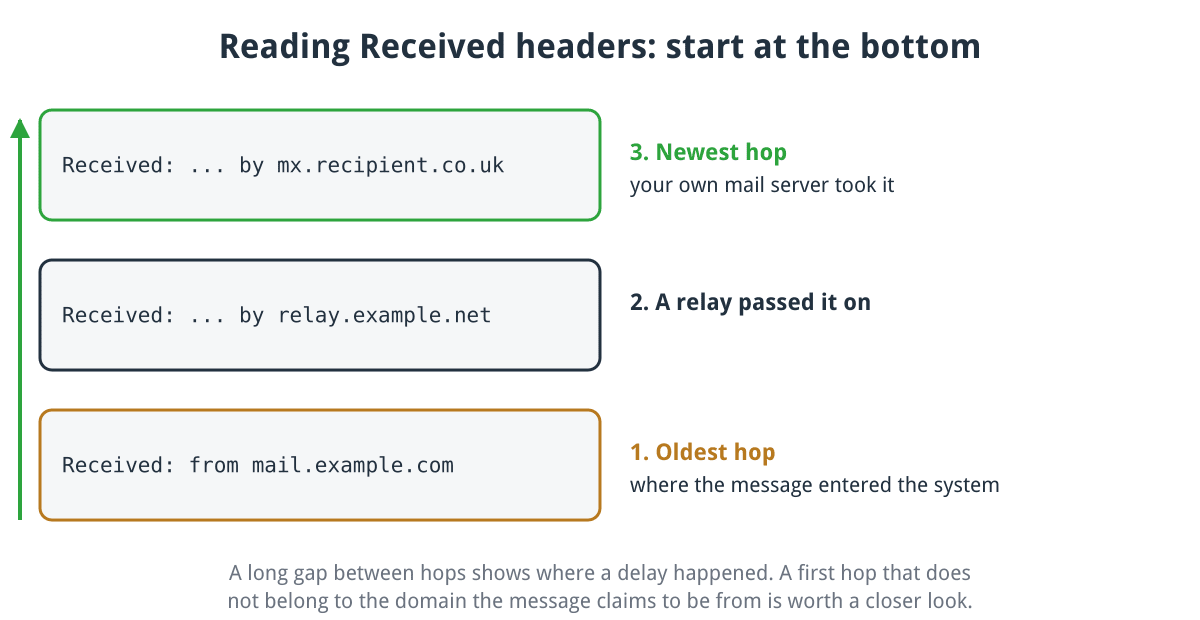
Received headers are added on top of each other, so reading upwards follows the message forwards in time.
Click for full sized image
Received: from mail.example.com (mail.example.com [203.0.113.10])
    by mx.recipient.co.uk with ESMTPS id abc123
    for <[email protected]>; Sat, 8 Aug 2026 09:14:22 +0100
Each hop tells you which server handed the message on, which received it, and when. Two things to look for: a large time gap between hops, which shows you where a delay happened, and a first hop that does not belong to the domain the message claims to be from.
The authentication results, which is usually the answer
This is the header worth learning:
Authentication-Results: mx.recipient.co.uk;
    spf=pass smtp.mailfrom=example.co.uk;
    dkim=pass header.d=example.co.uk;
    dmarc=pass header.from=example.co.uk
spf says whether the sending server was authorised to send for that domain. dkim says whether the cryptographic signature validated, proving the message was not altered. dmarc says whether those results line up with the visible From address.
A fail on any of these usually explains a message landing in spam. A pass on SPF with a fail on DMARC is the classic signature of a mailing list or forwarder, because the message authenticated as one domain while claiming to be from another.
Other fields worth knowing
Return-Path is where bounces go, and it is the address SPF actually checks. It frequently differs from the From address, which is normal for anything sent through a bulk provider.
Reply-To is where a reply goes. On a fraudulent message this is often the giveaway: a plausible From address with a Reply-To at a free mail provider.
Message-ID uniquely identifies the message and is what your host will use to find it in the mail logs. If you are reporting a delivery problem, include it.
X-Spam-Score or similar, added by filters such as SpamAssassin, shows how a message was scored and often which rules it triggered.
Using them to answer real questions
“Did my customer actually receive it?” The headers only cover the copy you have. For a message you sent, your own mail server’s logs are the record. Give your host the Message-ID and they can trace it.
“Why did this go to spam?” Look at Authentication-Results in the copy the recipient received. If SPF or DKIM failed, that is your answer and the fix is in your DNS.
“Is this email genuine?” Check whether SPF, DKIM and DMARC passed for the domain in the visible From address. Then check whether Reply-To matches. Then look at the first Received hop.
“Someone is sending email as us.” The headers of a sample tell you whether it genuinely originated from your systems, in which case you have a compromise, or was simply forged elsewhere, which is far more common and is what SPF, DKIM and DMARC exist to stop.
Tools that do the reading for you
Paste the headers into Google’s Messageheader tool and it lays out the hops with the delay at each one, which makes a slow relay obvious immediately.
MXToolbox has a similar analyser that flags authentication problems in plainer language.
Both are free, and neither replaces knowing what the fields mean, but they save time on a long header block.
A word of caution
Headers can be forged. Anything above the point where the message entered a server you trust was written by the sender and could be fiction. The Received headers added by your own mail server, and by the recipient’s, are the ones you can rely on.
That is another reason to read from the bottom up while remembering that the bottom is the least trustworthy end.
The short version
Find the headers, read from the bottom upwards, and go straight to Authentication-Results. That one line answers most delivery questions on its own. If it says fail, the problem is your SPF, DKIM or DMARC records rather than anything about the message.
Securing the mailbox itself is a separate job, and our guide to keeping your email accounts secure covers the checks worth making.
If you host with us and are chasing a delivery problem, send us the full headers and the Message-ID and we will trace it through the logs.
