CubeCart All In One Shipping: Rates That Match What Delivery Actually Costs
Shipping is where a lot of small shops quietly lose money. Charge a flat rate and you subsidise every heavy or awkward order. Charge too much and people abandon the basket. Use a courier’s live rates and you are at the mercy of an API and a set of account rates that may not reflect what you actually pay.
All In One Shipping is CubeCart’s answer to the middle ground: rules you define, calculated from the things that actually drive your costs, with no external service involved.
What it does
It calculates a shipping price from three possible dimensions, used alone or together:
- Weight, so £5 for up to 1kg, £7 for 1 to 2kg, and so on.
- Order subtotal, which is how you implement free shipping over a threshold.
- Total item quantity, so £3 for up to five items, £5 for up to ten.
On top of that it supports shipping zones, so the rates that apply depend on where the customer is, right down to postcode level.
For most shops this covers everything a courier integration would, without the dependency, and it lets you charge what shipping actually costs you rather than what a carrier’s published rate card says.
Zones are the important part
Zones are defined by country or by postcode, and the postcode matching is more capable than people expect.
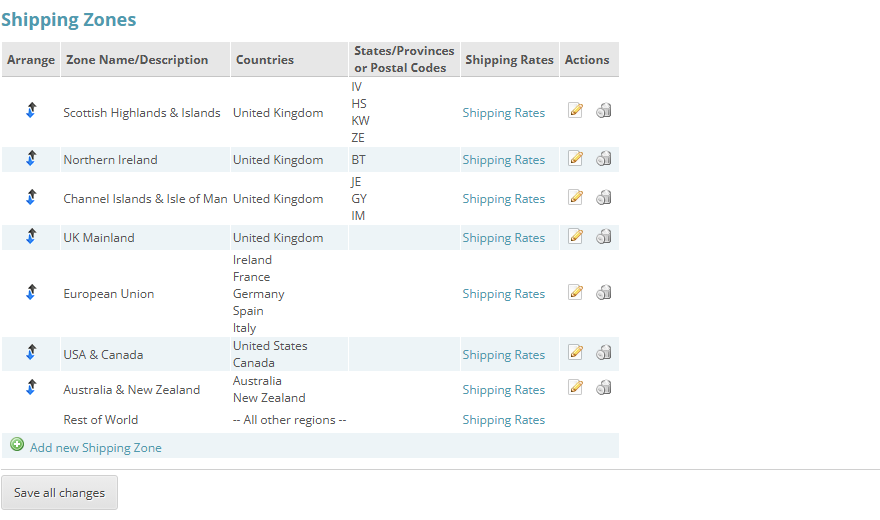
Specific zones sit above the catch-all. The four UK zones match on postcode prefix, the international ones on country, and Rest of World picks up everything left over.
Click for full sized image
You list postcodes one per line or comma separated, and you can use:
- A dash for a numeric range,
90210-90214. Numeric postcode countries only. - An asterisk or percent sign to match any characters,
M4G*. - An underscore to match exactly one character,
9021_.
For UK postcodes it is smarter still. Entering one or two letters matches that postcode area exactly, so B matches Birmingham without also catching Bristol or Belfast. Entering letters followed by numbers matches a district, so KA27 catches the Isle of Arran and nothing else.
That solves the single most common UK shipping problem properly. A Scottish Highlands and Islands surcharge zone is just:
IV
HS
KA27, KA28
KW
Anyone who has tried to express that with a flat rate, or explained to a customer in Lerwick why their delivery costs what it does, will appreciate how much easier this is than the alternatives.
How rates are calculated
Under Advanced Settings you choose which components make up the price, and they add together:
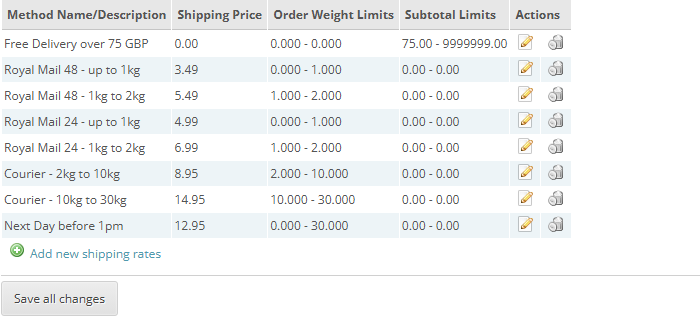
One zone, eight rates: weight bands per service, a next-day option, and a subtotal rule giving free delivery over £75.
Click for full sized image
- Flat rate component, a fixed amount per order. Recommended as the base.
- Per item component, multiplied by the total quantity.
- Percentage component, a percentage of the order subtotal.
- Weight component, an amount multiplied by total order weight.
Most shops want a flat rate plus, perhaps, a per-item element. Starting with everything switched on makes the results hard to reason about, so add components one at a time and check the figures.
Two further settings matter:
Packaging weight is added to the order weight before rates are looked up. If you are on weight bands, this is the difference between quoting for a 990g order and paying for a 1.1kg parcel.
Fuel surcharge applies a percentage on top, which is how couriers actually bill and saves you rebuilding every rate band when it changes.
When an address matches more than one zone
This catches people out, so decide it deliberately. The setting offers:
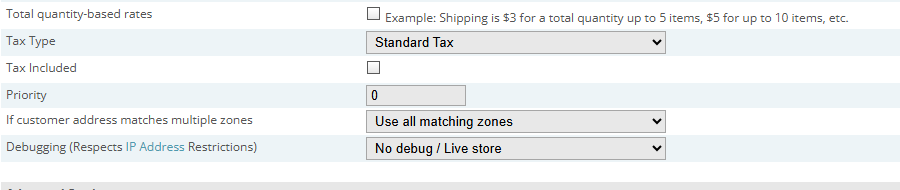
The multiple-zone setting, with the debug dropdown directly beneath it.
Click for full sized image
Use all matching zones. The customer is offered rates from every zone they match, excluding Rest of World. Good when zones represent genuinely different services.
Use first matching zone only. The customer gets the first match. This is what you want when you have specific postcode zones plus a catch-all country zone. Put the Highlands zone before the Rest of UK zone and Highlands customers get the surcharge rate rather than being offered both.
If you build postcode zones and a country fallback, “first matching zone only” is almost certainly the setting you want.
Setting it up
- Install the module and enable it under the shipping modules list.
- Give it a method name. This is what customers see at checkout, so “Standard Delivery” rather than “AIOS”.
- Choose which of weight, subtotal and quantity your rates are based on.
- Set packaging weight and any fuel surcharge.
- Pick the tax class, and whether your entered rates already include tax.
- Build your zones using the tabs at the top of the page. Order matters if you are using first-match.
- Enter the rate table for each zone.
- Set the multiple zones behaviour.
- Set position if you run several shipping modules, since it controls the order options appear in.
Then test with real basket combinations: a light single item, a heavy order, an order just over your free shipping threshold, and an address in each zone.
The debug setting
There is a debugging option with normal and verbose levels, and it respects the IP address restrictions in your store settings, so you can turn it on against a live shop and only you will see the output.
Use it when a rate is not what you expect. It shows which zone matched and how the figure was arrived at, which turns “why is this order £4.50” from guesswork into a two minute check. Turn it off afterwards.
Getting your rates right
The module will calculate whatever you tell it to, so the value comes from the numbers you put in.
Work out what you actually pay. Take a month of real orders and compare what you charged with what the courier billed, including surcharges and fuel. Most shops find they are losing on heavy orders and overcharging on light ones.
Include your packaging and time. Boxes, tape and labels are a real cost.
Set your free shipping threshold deliberately. Above your average order value, so it pulls orders up rather than giving away margin on orders people were placing anyway.
Show the cost early. Since April 2025 the DMCC Act requires the total price including unavoidable charges to be shown up front, and the CMA has already fined businesses over drip pricing. If delivery genuinely varies by destination you can still charge it separately, but be transparent about it well before the final step.
Worth using?
For most CubeCart shops, yes. Live courier rates are worth it if you ship high volumes on negotiated rates and the integration exists for your carrier. For everyone else, rules you control are more predictable, have nothing to break, and let you charge what shipping costs you rather than what a rate card says.
If you sell physical goods of varying size, it is also worth looking at CubeCart’s box packing feature alongside this, which works out the parcels an order actually needs rather than assuming one.
If you run a CubeCart store hosted with us and want a hand working out sensible rate bands from your real courier invoices, get in touch.
