Google Tag Manager for CubeCart: One Container Instead of Ten Snippets
Most shops end up with a collection of tracking snippets pasted into templates over the years: an analytics tag, a Google Ads conversion, a remarketing pixel, something a marketing agency added in 2019 that nobody dares remove. Each one was a code edit, none of them are documented, and they all survive skin upgrades by luck.
Google Tag Manager replaces all of that with one container. You add a single snippet once, and everything else is managed through a web interface without touching your store again.
Why bother
One code change, ever. Adding a conversion tag, a remarketing pixel or a new analytics property becomes a change in the GTM interface rather than a template edit. On CubeCart that matters because template edits are the thing most likely to be lost or to break during an upgrade.
You can see what is running. A GTM container lists every tag on your site. Compare that with trying to work out what is on your shop by reading skin templates.
Versioning and rollback. Every publish is a version. If something breaks, revert.
Preview mode. You can test tags against your live site before publishing them, seeing exactly which fired and what data they received.
Fewer people in your templates. A marketing agency can be given GTM access without being given access to your store’s code. This is a genuine security improvement, and it means a tracking change cannot take your checkout down.
The trade-off is honest: GTM is another script, and a container stuffed with tags will slow your site. It makes tags easier to add, which means people add more of them. Audit it occasionally.
What the CubeCart plugin does
The Google Tag Manager (Container) plugin does three things.
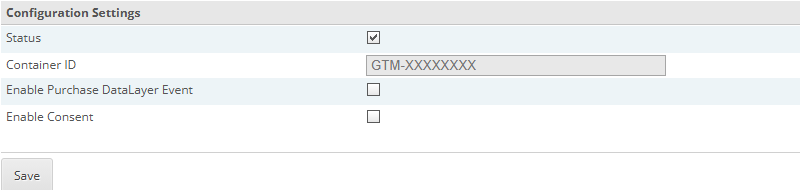
The whole configuration screen: four settings. Everything else happens in the Tag Manager interface.
Click for full sized image
It loads the container on every storefront page, and deliberately strips itself out of email templates.
It pushes a purchase event to the dataLayer when an order completes, with the ecommerce data GA4 expects: transaction ID, store name, order value, tax, shipping, currency, and a list of items with code, name, price and quantity.
It optionally shows a consent banner implementing Google Consent Mode v2.
Setting it up
1. Create the container. Sign in to Google Tag Manager, create a Web container for your site, and copy the Container ID from the top of the workspace. It looks like GTM-XXXXXXXX. Paste it into the plugin and enable the module.
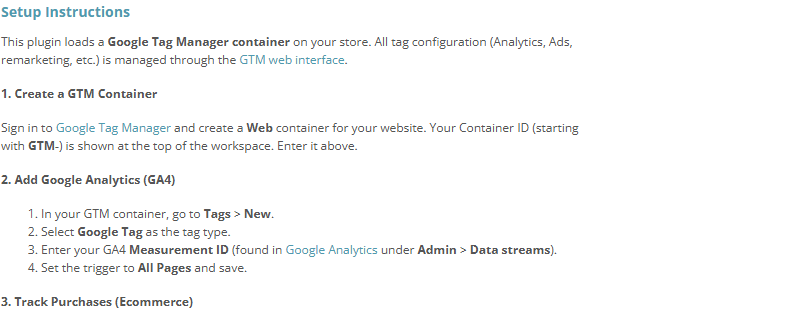
The plugin carries its own setup instructions on the settings screen, so the steps are in front of you while you work.
Click for full sized image
2. Add Google Analytics. In GTM, create a new tag, choose Google Tag, enter your GA4 Measurement ID from Analytics under Admin then Data streams, set the trigger to All Pages, and save.
3. Turn on purchase tracking. Enable Purchase DataLayer Event in the plugin. Then in GTM create a GA4 Event tag with the event name purchase, and a Custom Event trigger also matching purchase. Save and publish.
4. Google Ads conversions. Create a Conversion Linker tag on All Pages. Then a Google Ads Conversion Tracking tag with the Conversion ID and Label from Google Ads under Goals, Conversions, Tag Setup. For the value, use a Data Layer Variable named ecommerce.value, and trigger it on the purchase custom event.
5. Publish. Changes in GTM do nothing until you click Submit and publish the version. This is the single most common reason people conclude tracking is broken.
Test it before you rely on it
Do not assume tracking works because the container is loading. Tag Manager has a Preview mode that connects to your live site and shows every tag that fired, the trigger that fired it, and the data it received.
Turn Preview on from the workspace, browse your store, and place one test order through an offline payment method. Check that the purchase event carries a transaction ID, an order value and a list of items. If the value is missing or zero, your tag is reading the wrong dataLayer variable, and Preview shows you that immediately rather than leaving you to work it out from Analytics a day later.
Do this once when you set the container up, and again any time you change the checkout or upgrade the store.
Consent mode
If you have visitors in the UK or EU, you need consent for analytics and advertising cookies, and since 2024 Google requires Consent Mode v2 signals for advertising features to work properly in the EEA.
Enabling Consent in the plugin adds a banner and sets Consent Mode defaults. Worth knowing how it behaves: before the visitor has chosen, all seven consent signals default to denied, covering ad storage, analytics storage, personalisation, functionality, security, ad user data and ad personalisation. The choice is stored in the browser’s local storage and applied on subsequent visits.
Denied-by-default is the correct and legally safer position. Be aware of the consequence: visitors who ignore the banner are not counted in analytics, so your numbers will drop compared with tracking everyone regardless. That is the law working as intended rather than a fault, and modelled conversions in GA4 partially compensate.
If you already run a separate consent platform, leave this off rather than running two banners.
Things that go wrong
You forgot to publish in GTM. Always check this first.
Purchase events not appearing. The event fires on order completion for orders that reached a paid status. An order sitting at Pending will not trigger it. Check the order status first, then use Preview mode to confirm whether the event fired at all.
Duplicate tracking. If you previously pasted an analytics snippet into your skin, remove it. Otherwise you have two tags and your numbers double.
Consent blocking everything. If tags are not firing and consent is on, that is usually correct behaviour rather than a bug. Check whether you accepted the banner in the browser you are testing with.
Ad blockers. A meaningful share of visitors block GTM entirely. Your analytics undercounts. Everyone’s does.
Container or gtag?
There is a simpler Google Tag (gtag.js) plugin as well. If all you want is GA4 and Google Ads conversion tracking, and you have no intention of managing tags yourself, that is less to think about.
Choose the container version if you expect to add more tags over time, if an agency needs to manage tracking, or if you want preview and rollback. For most shops that grow beyond basic analytics, the container pays for itself the first time you need to add a pixel without booking developer time.
We can also help with SEO and analytics more broadly. If you host your CubeCart store with us and want a hand getting the container set up or working out why a conversion is not being recorded, get in touch.
